


On October 7, 2026 (US time), Microsoft began rolling out a test version of a rebuilt Windows 11 search built with WinUI 3. It lets users change settings, arrange windows, and perform other tasks directly from search results. The search box, long used to find apps and files, can now also carry out a range of PC operations. The search window has been simplified into a single results list, and Microsoft says startup speed and memory usage have improved.
However, what has started rolling out is an English-language test version for Windows Insiders. The Copilot integration, which shows AI answers inside the search window, is planned for opt-in users in select markets later this year. To understand this change, you need to look at what the search window can now do and also keep the availability of each feature separate.
Not just finding settings, but completing the action on the spot
With the new Windows Search, typing a short instruction into the taskbar search box lets you change PC settings and status directly from the results.
Microsoft's announcement about the search feature gives switching to dark mode and turning on Bluetooth as examples. It also supports adjusting screen brightness and muting audio, as well as minimizing all open windows or arranging them on screen.
For example, if you type an English instruction to switch to dark mode, you can change the theme from the action item shown in the results. You no longer need to open the Settings app, find the right item, and toggle it as before.
For window arrangement, Microsoft has demonstrated placing Edge and Word side by side.
What matters most about this change is that the search box is evolving from a place to look for the setting or feature you want into a place where you can carry out the action itself.
The announcement covering new Windows features overall highlights "thousands of new actions" available from the taskbar. However, according to the detailed explanation of the search feature, support will begin with frequently used actions and expand gradually. Not every action is available at the start of the test.
An example of sending text from a device connected through the Phone Link smartphone integration is also shown, but phone-related actions are planned to be added soon.
If this approach catches on, users won't need to remember where each setting lives. Instead, they type what they want to do, and the appropriate action appears as a suggestion.
That said, the first test version supports English only, and it has not yet reached the point where the same operations work in Japanese.
A full redesign of the search window with WinUI 3
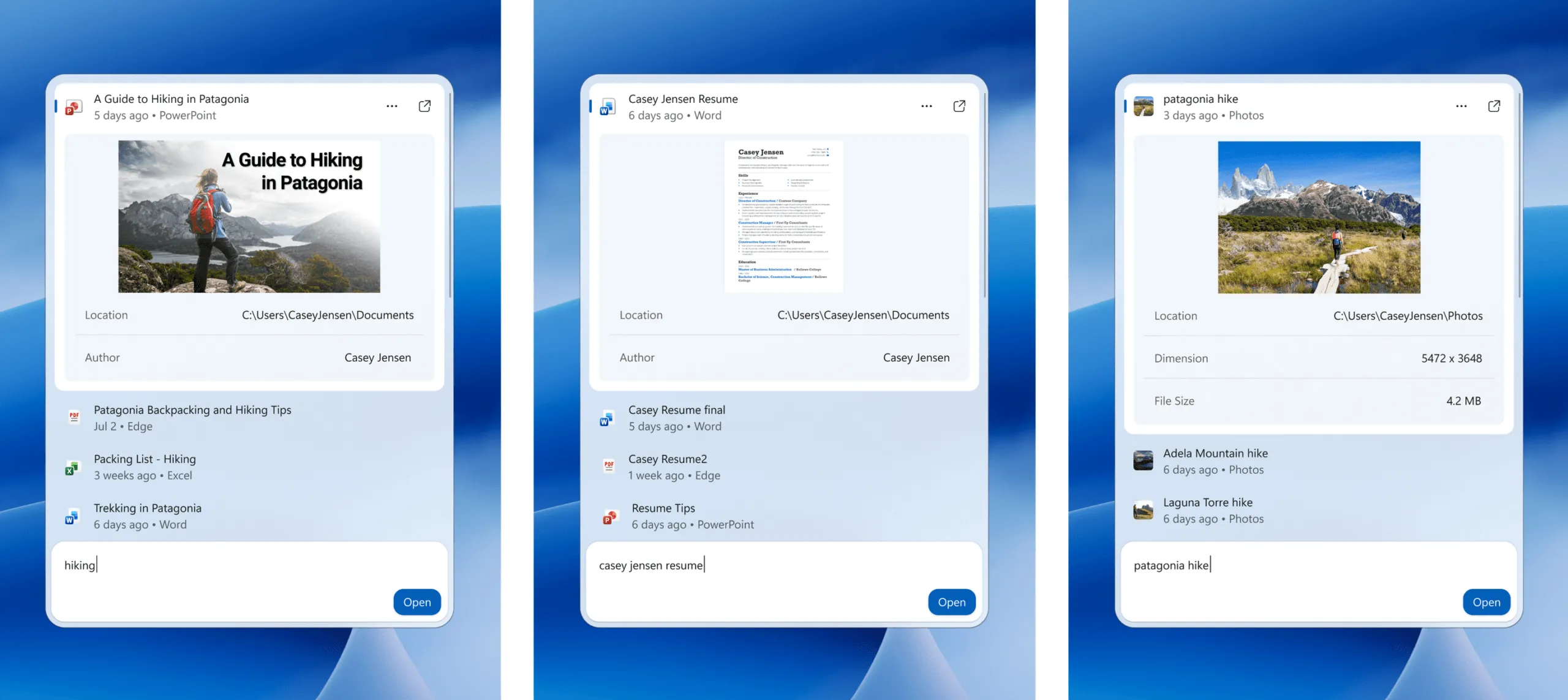
Microsoft has also substantially reworked the layout of Windows Search.
The previous search window placed a list of results on the left and a large preview area on the right. The new window drops that layout and presents results in a single list.
According to Microsoft, almost all clicks in the old search window were concentrated on the results list on the left. So it consolidated information into the area people actually use, creating a simpler layout that doesn't require shifting your eyes left and right. The specific share of clicks has not been disclosed.
The technology used to build the window is also being replaced.
According to Microsoft's developer documentation, WinUI 3 is a native UI framework included in the Windows App SDK that provides on-screen display and controls for desktop apps. It does not refer to the index that manages searchable data itself.
Microsoft says initial testing of the new search window showed significant improvements in performance and memory usage.
However, it has not disclosed specific figures, such as how much startup time has been reduced or by how much memory usage has fallen. The configuration of the PCs used for measurement has not been published either, so the move to WinUI 3 may not deliver the same performance gains on every PC.
The overhaul also connects to earlier efforts to improve search usability.
In an improvement announced on July 13, Microsoft simplified the search home screen and removed items such as related product promotions that appeared in web search results.
It also let users choose in settings whether web and Microsoft Store suggestions appear alongside apps and files on the PC. Microsoft also indicated that when apps or files on the PC closely match the search term, they will be prioritized over web search suggestions.
Whereas the July improvements revisited what search suggestions show and how they are prioritized, this announcement carries that work over to a new UI foundation.
Support for typos and synonyms is also being strengthened, with tuning to continue over the coming weeks.
The overhaul also aligns with the Windows quality improvement policy Microsoft announced in March. That policy set the goals of migrating core Windows features to WinUI 3 and reducing lag in responding to user actions.
Beyond how many new actions are added, how comfortable it is to go from opening the search window to finishing the task will be an important measure of this overhaul.
How do semantic search, direct actions, and Copilot integration differ?
Copilot+ PCs already include a search feature that can find semantically related information even when the search term doesn't appear exactly in a file name or its contents.
According to Microsoft's explanation of search indexing, it works by using a "semantic index," which judges semantic relevance, in addition to the traditional search index.
For example, searching for "pasta" can also surface related "lasagna" documents and images.
The newly added direct actions serve a different purpose from this semantic search.
Semantic search is for finding related files and information, whereas direct actions are for changing PC settings and window states.
The Copilot integration to be introduced later is a feature for getting short AI answers inside the search window and, if needed, continuing the conversation in the Copilot app.
The differences can be summarized as follows.
| Feature | Main role | Availability and conditions |
|---|---|---|
| Semantic search on Copilot+ PCs | Finds related files and information without relying on exact matches to the search term | Existing feature. Japanese is also a target of optimization |
| Direct actions in new search | Runs actions such as changing settings and arranging windows from search results | Initially a test version for the Experimental channel, English only |
| New Copilot integration | Shows AI answers in the search window and lets you continue the conversation in the Copilot app if needed | Planned for opt-in users in select markets later this year |
One thing to watch is the difference in supported languages.
Just because the existing semantic search supports Japanese does not mean the new direct actions can be used in Japanese.
Conversely, the fact that the new search feature is initially limited to English does not mean the existing Japanese semantic search becomes unavailable.
Even when features are accessed from the same search box, each has different supported languages and availability conditions.
Where data is processed also needs to be considered feature by feature.
Microsoft says the semantic index data used for semantic search is stored on the PC and is not stored by Microsoft or used to train AI models. When using an AI-enabled Cloud PC, it is stored in that Cloud PC's storage.
This, however, is an explanation about the search index only. It does not guarantee that the processing of conversations with Copilot, to be introduced later, will be completed entirely on the PC.
The Windows-wide features announced the same day also include "hybrid AI" for Copilot+ PCs.
This mechanism combines local and cloud environments for AI processing and is scheduled to launch within the next few months. It is a separate initiative from the feature that runs actions such as settings changes from search results.
Microsoft has not said the test of the new search feature is limited to Copilot+ PCs. On the other hand, technical details, such as what internal model interprets the entered instructions and whether an internet connection is required, have not been disclosed.
Therefore, you should not judge available features by the presence of an NPU alone, and should check the conditions in each official guide.
When will the new search be available? Japanese support is undecided
As of the October 7, 2026 announcement, the availability of each feature related to the new Windows Search varies.
The new search window and direct actions have begun testing in English, while the Copilot integration is planned for select markets later this year. Bringing the new search to the Start menu is in development with an eye toward 2027.
Based on the detailed search announcement and the Windows-wide announcement, the planned rollout of the main features is as follows.
| Feature | Timing / development status | Conditions and limitations |
|---|---|---|
| New taskbar search and direct actions | Gradual test rollout from October 7 | For the Experimental channel. English only at first |
| Phone actions on devices connected via Phone Link | Planned to be added soon | Targets connected devices. No specific date announced |
| File previews and detailed information in search results | Planned to be added in 2026 | Lets you check contents without opening files and tell similar results apart more easily |
| In-search integration with the new Copilot | Planned to launch in select markets in 2026 | Optional for users to enable. Details of target markets not announced |
| New search in the Start menu | In development toward 2027 | In the initial test, Start menu search remains as before |
This announcement mixes features that have begun testing with features planned for later.
Even though the new search window now appears on the taskbar, Start menu search is not being overhauled at the same time.
Also, even for features with a planned launch this year, that does not mean all general Windows 11 users will be able to use them within the year. The timing of Japanese support has not been announced so far.
Microsoft lists the following builds as targets for this test version:
- Experimental: Build 26340.9616
- Experimental (26H1): Build 28120.3181
After updating to a target build, check for updates again in Windows Update and restart the PC, and the new search feature should appear as a feature flag item in the Windows Insider Program.
However, because features are rolled out gradually, not every participant using a target build will necessarily get access at the same time.
Going forward, a preview function will also be added that lets you check the contents of Word documents, photos, and other files directly from search results.
Features that show information from the web inside the search window, and that narrow results by file type and other criteria, are also planned to be integrated into the new search window.
If these materialize, there will be less need to open an app each time you find the file you want, and even traditional search that doesn't use direct actions should become easier to use.
Ease of use matters more than the number of features
In the Windows quality policy announced in March, Microsoft indicated it would reduce unnecessary entry points to Copilot and focus on integrating features that are actually useful.
The July search improvements reduced promotional displays and let users choose whether to show web search suggestions. The upcoming Copilot integration is also set up so that users enable it if they want it.
While expanding search, Microsoft is letting users choose what information is shown and which features it connects to. This approach carries real weight in improving how usable Windows is.
In the first place, people use the search box for different purposes depending on the situation.
When you know the file name, you want to open it as quickly as possible. When you don't know where a setting is, you want to change it right from search. When you want to look something up, an AI answer or conversation can sometimes help.
Whether the new Windows Search becomes convenient depends on how well it handles these differing purposes.
Does it show results that match your intent? Does the search window open quickly? Can you finish the action you need in few steps? Everyday usability, not just the number of features, will be put to the test.
The actual impact of the performance improvements Microsoft describes, and how practical Japanese-language operation becomes, will have to wait for wider rollout and real-world testing.
If you can not only find the setting you want from the search box but also complete the action on the spot, the way people use Windows could change significantly. Whether that evolution proves truly convenient depends less on adding new features than on whether users can reach their goals without confusion.